
Settings
Settings is one page, organized by a single idea: scope. Some settings live in the browser you set them from, some apply to everyone using the instance, and some control who gets in. Knowing which scope a setting belongs to tells you where it takes effect and who it reaches.
Device settings
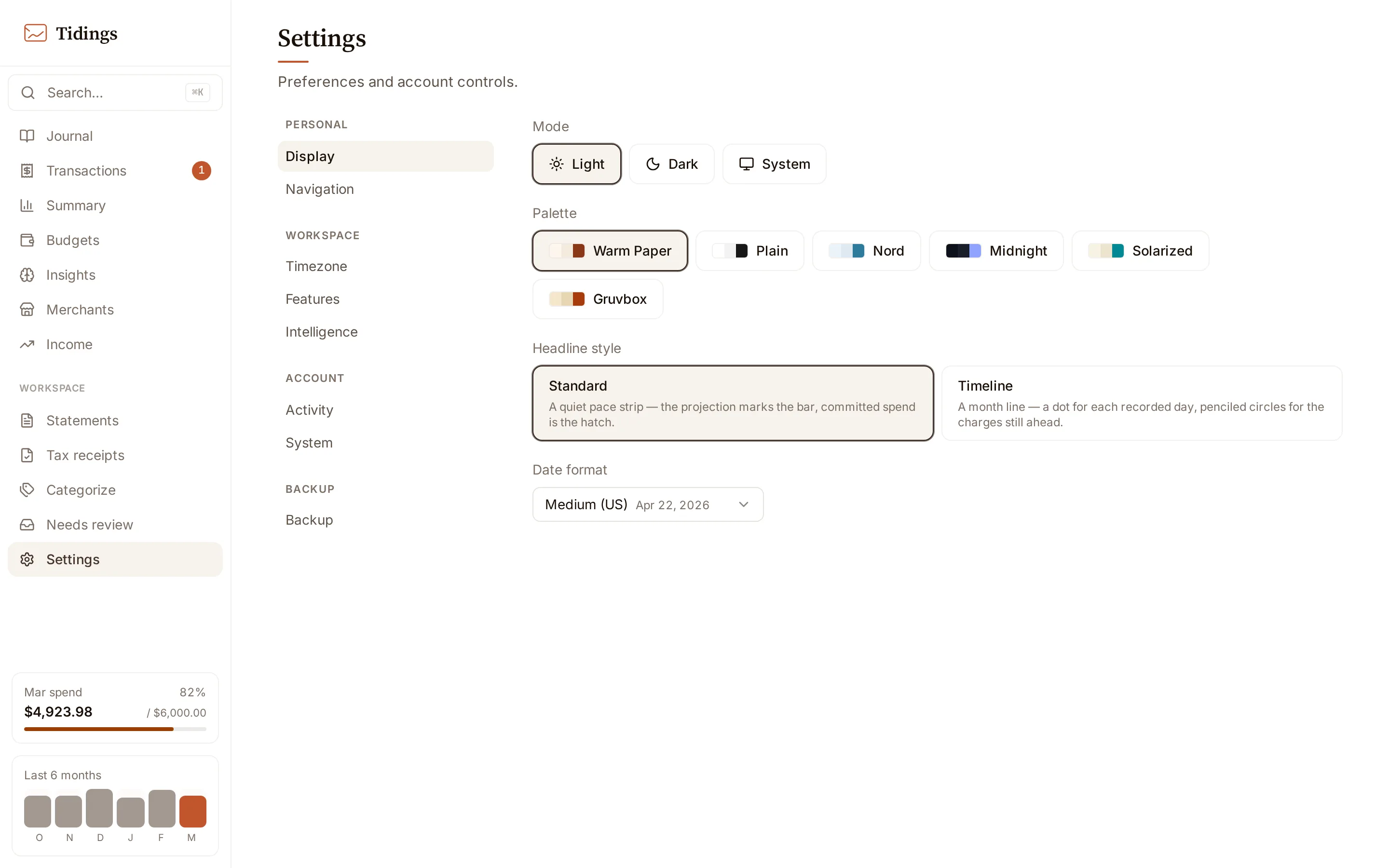
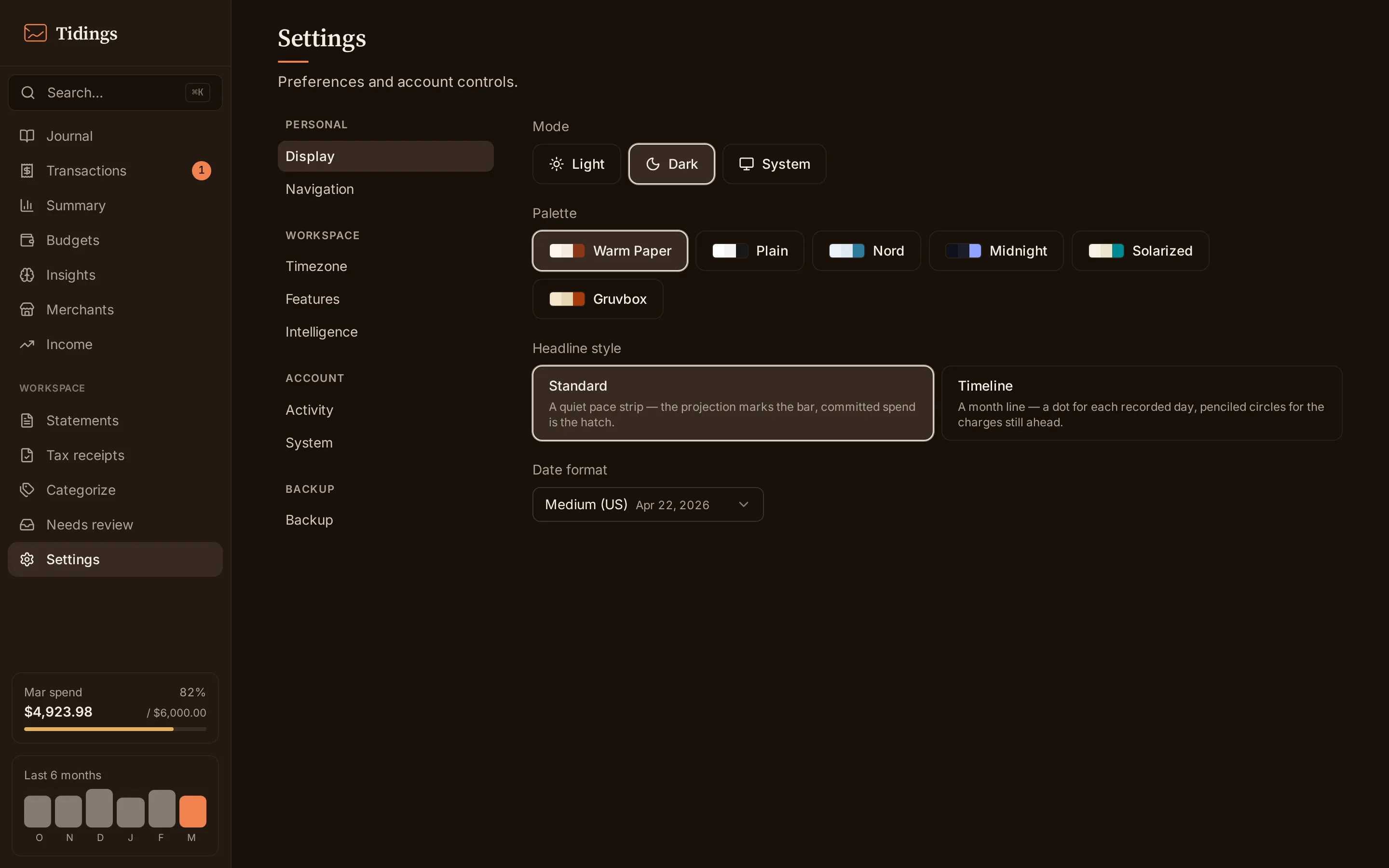
Section titled “Device settings”Display and Navigation are yours alone — they persist in the browser, not on the server, so each device you open Tidings on keeps its own.
Display covers the mode (Light, Dark, or System), the palette — Warm Paper (the default), Plain, Nord, Midnight, Solarized, or Gruvbox — and the date format. Change these on your laptop and your phone keeps whatever you set there.
Navigation lets you reorder or hide the tabs in the sidebar. A hidden tab is only hidden from the rail; it stays reachable by its URL, so nothing you turn off becomes unreachable.
Workspace settings
Section titled “Workspace settings”These apply instance-wide. Change one and it changes for every browser pointing at the same dashboard.
Timezone decides how transactions bucket into days and months, so it shapes every total on every page. Changing it later is safe, but past rows keep the day grouping they were first filed under — new transactions bucket in the new zone while old ones stay where they were.
Features is where you turn the tax organizer on or off; see tax receipts for what that adds and hides.
Intelligence is the section to read carefully, because it governs whether AI runs at all and, when it does, where your data goes. It has four parts:
- Connections — where you attach a provider. Add an OpenAI API key, which is tested before it saves; sign in to ChatGPT for Codex; or let Tidings detect the Claude Code and Gemini command-line tools, which authenticate through their own tools rather than a key you paste here.
- Task routing — the provider, model, and reasoning effort to use per task: daily summaries, monthly briefings, categorization and email rescue, and document parsing. Each task can point at a different provider.
- Briefing memo — standing free-text context, up to 2000 characters, injected into every monthly briefing. Use it to tell briefings something the numbers cannot show.
- AI consents — four independent switches that decide whether AI touches your data, each stating exactly what it sends: the merchant name and amount for categorization; the subject and body of an email no parser can read, for email rescue; a statement’s text for statement parsing; and receipt content for receipts. The two email switches come on when you add an OpenAI key and can be turned back off; the two document switches stay off until you enable them — a key alone never turns them on.
Backup downloads a single zip holding every transaction field, including the original email bodies — treat that file as sensitive, since it is a full copy of your data. Restore previews the incoming rows as new versus duplicate before it commits anything, so an import never silently doubles your history. See backup and restore for the operational walkthrough and the configuration reference for the underlying keys.
If AWS credentials are already present on the machine, Backup also shows an S3 backup section — a bucket and optional prefix, a Verify button, an enable toggle, and a status row. Turned on, it mirrors your receipt attachments and statement PDFs (the files the backup zip leaves out) to a bucket you own, syncing hourly and restorable from the command line. The section stays hidden without AWS credentials. See S3 backup for setup, the minimal IAM policy, and the restore walkthrough.
Account settings
Section titled “Account settings”These control access to the instance.
Password gates the dashboard and must be at least eight characters. It guards the browser session only — agents and scripts keep authenticating with bearer tokens instead, covered in agent access. A local-development bypass exists and is labelled as such; it is for local development only, never a deployed instance.
Sessions lets you sign out this device, or sign out everywhere — other devices are signed out on their next request.
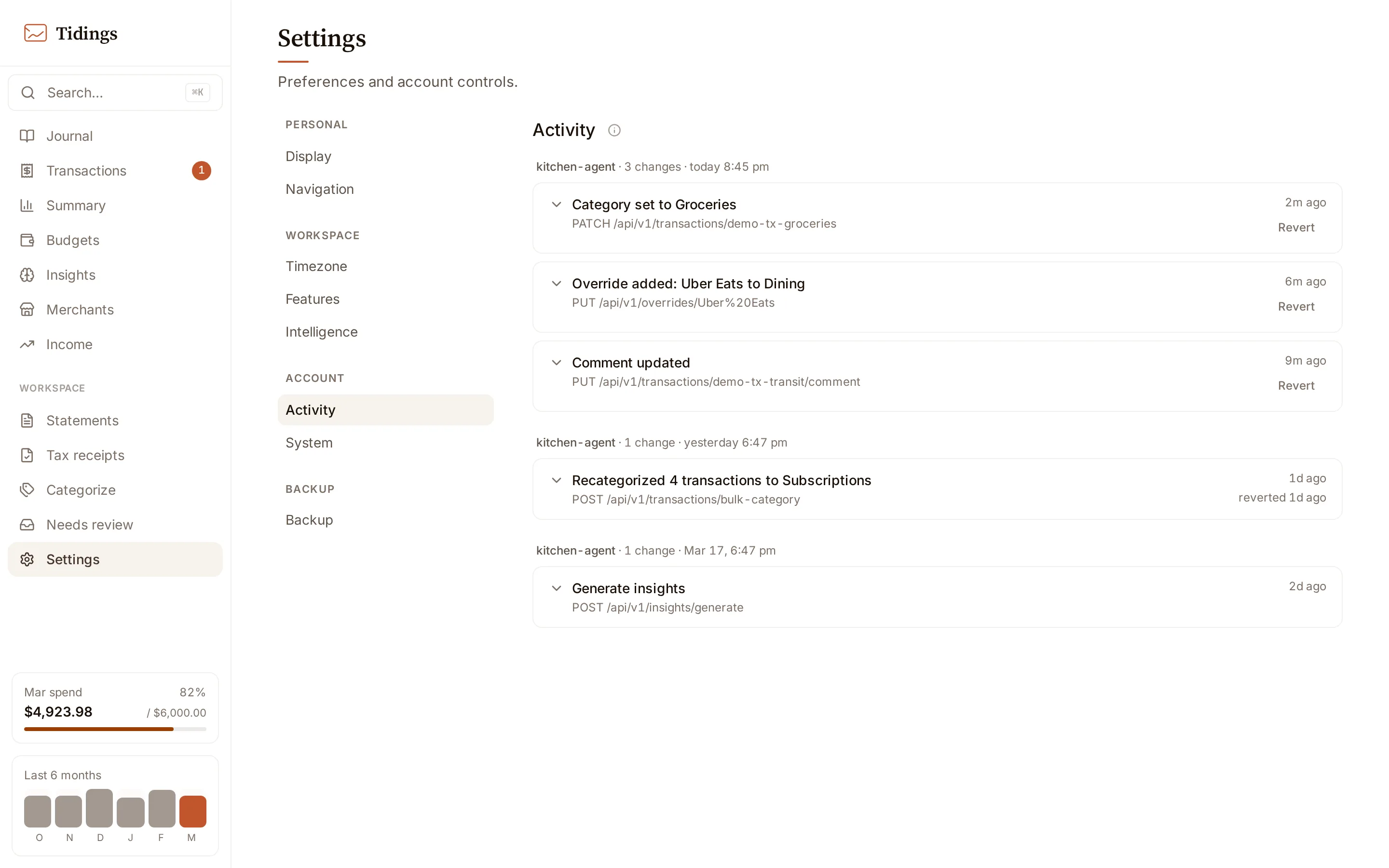
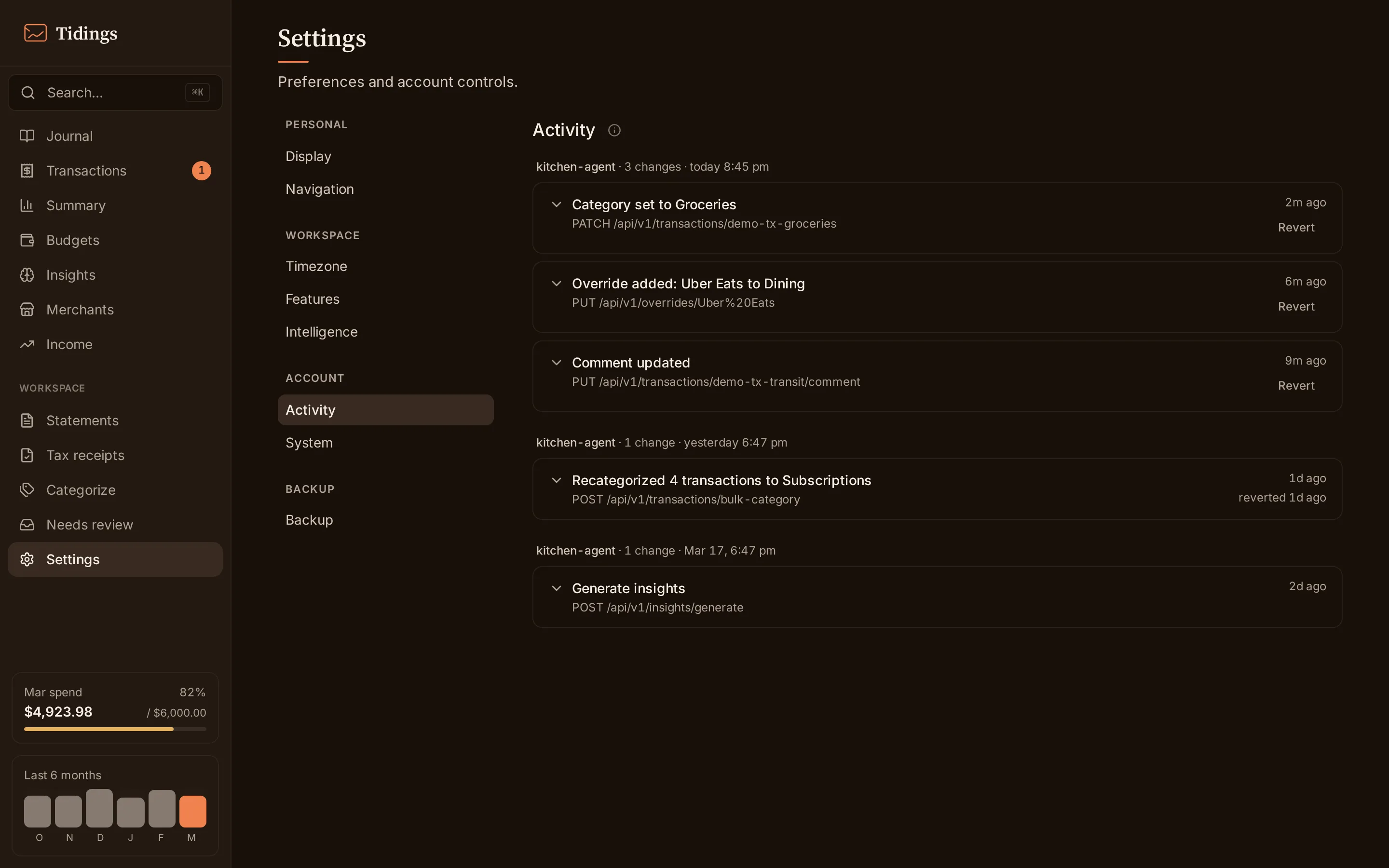
Activity is the write journal: every change that lands through the dashboard or the API is recorded with who made it — a named agent token, your browser session, or this device before a password is set. Each entry shows what changed, most entries can be reverted in place, and a revert is recorded as a new entry rather than an erasure. Entries are kept for 90 days. The feed does its real work once agents hold bearer tokens; agent access covers the full contract.
System holds the demo-mode toggle, which loads the sample dataset, and the storage backend status, which tells you whether you are on SQLite or DynamoDB.